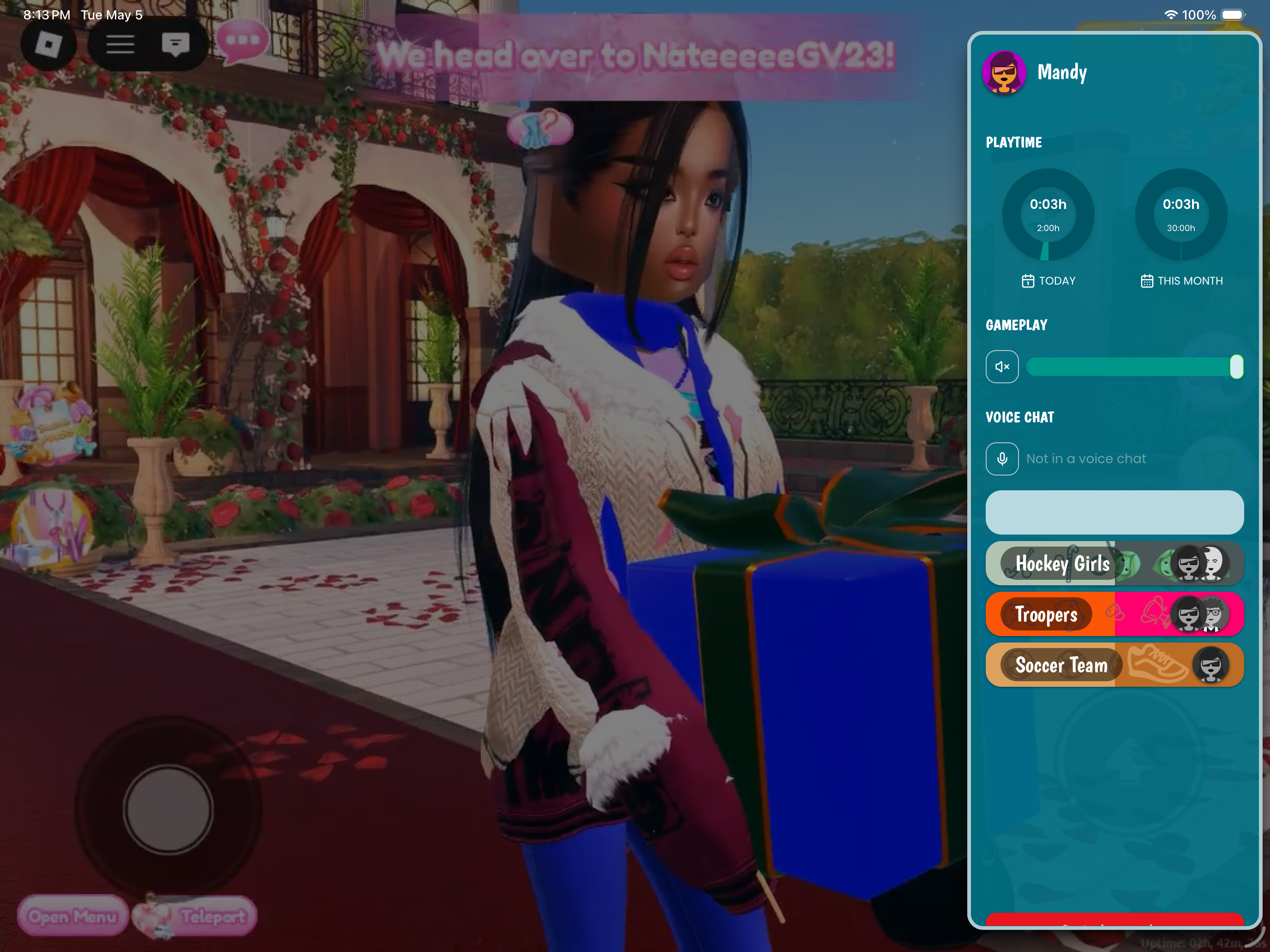
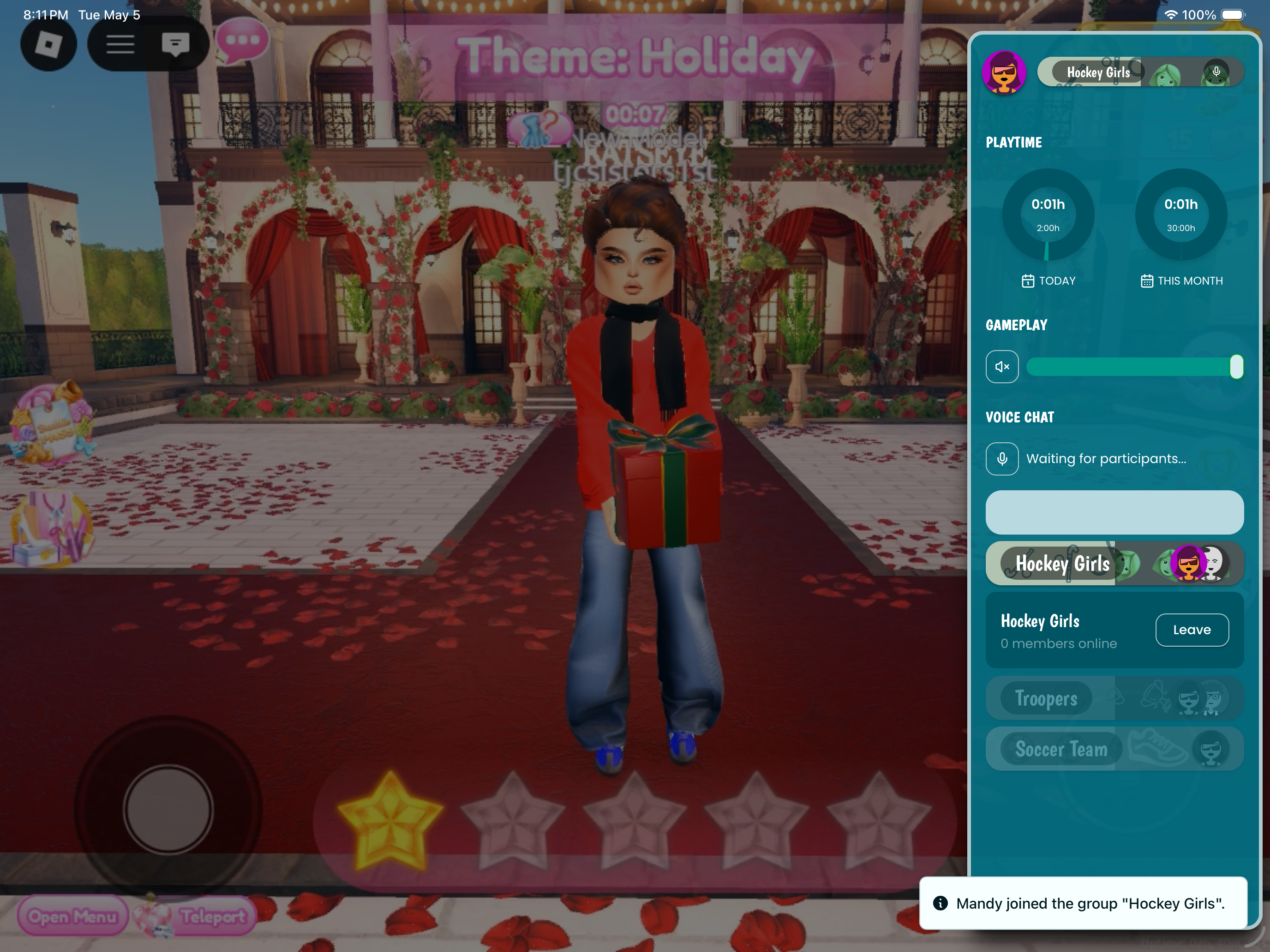
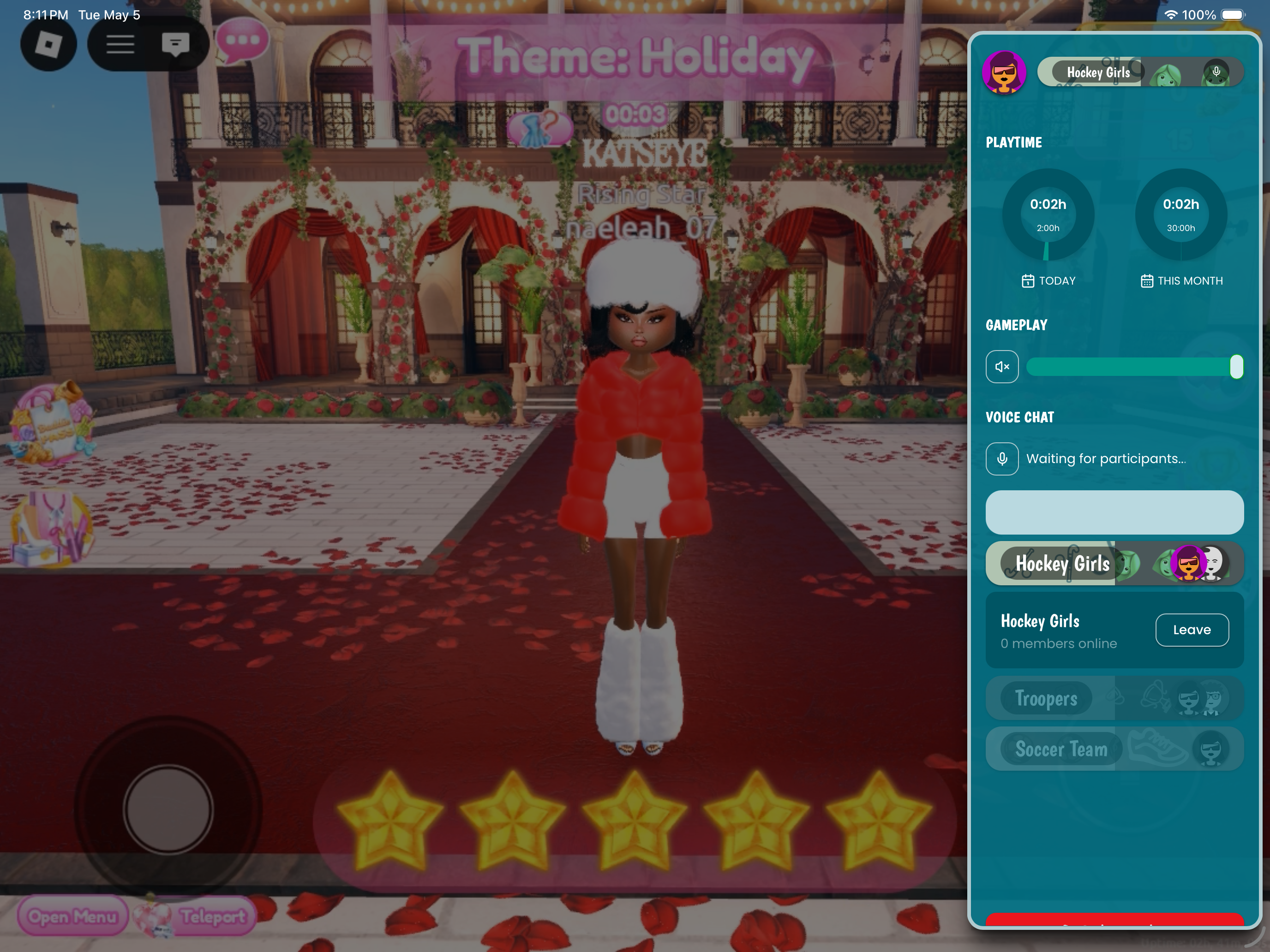
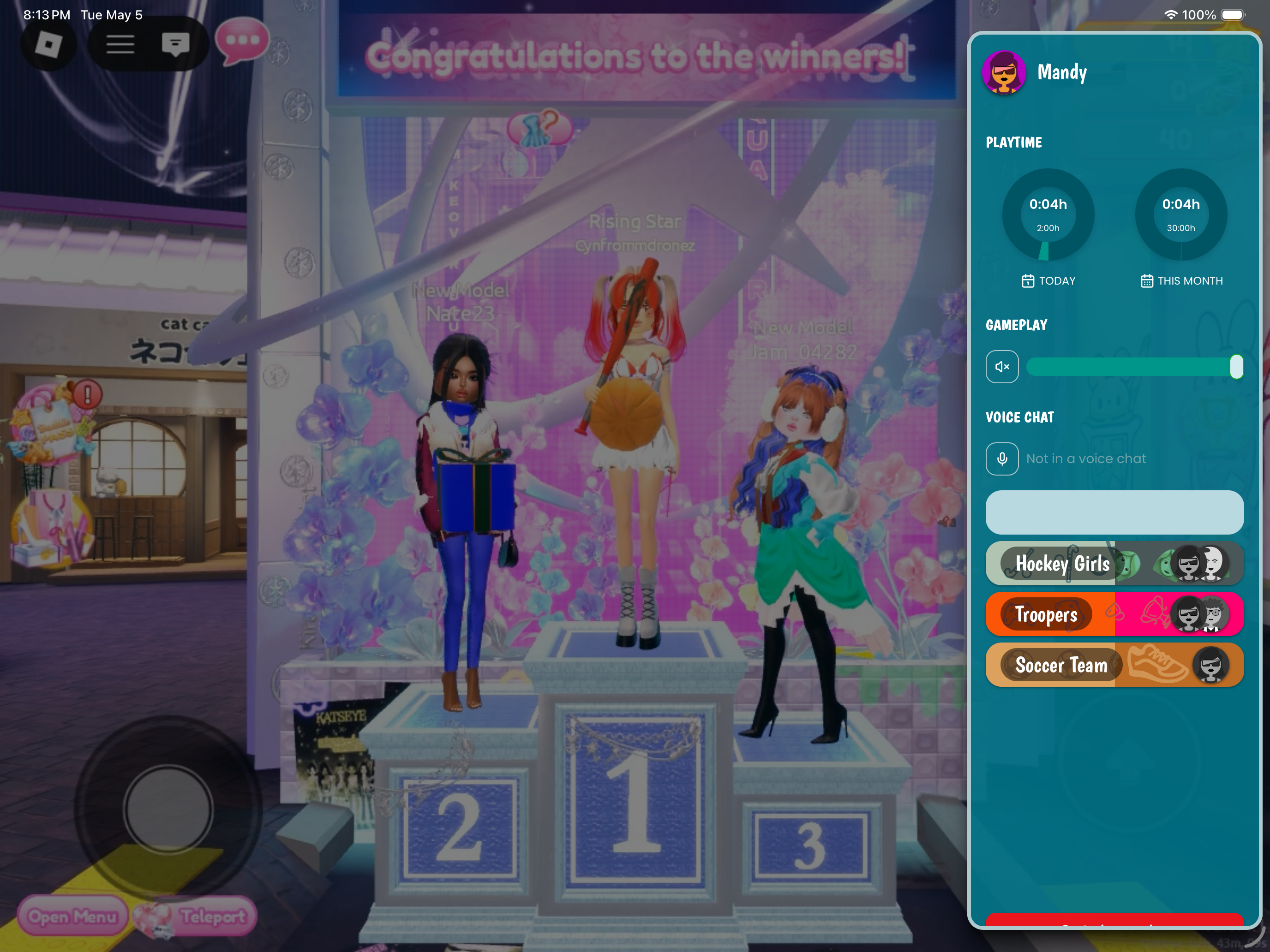
Master Your Digital Parenting with AI Powered Visibility

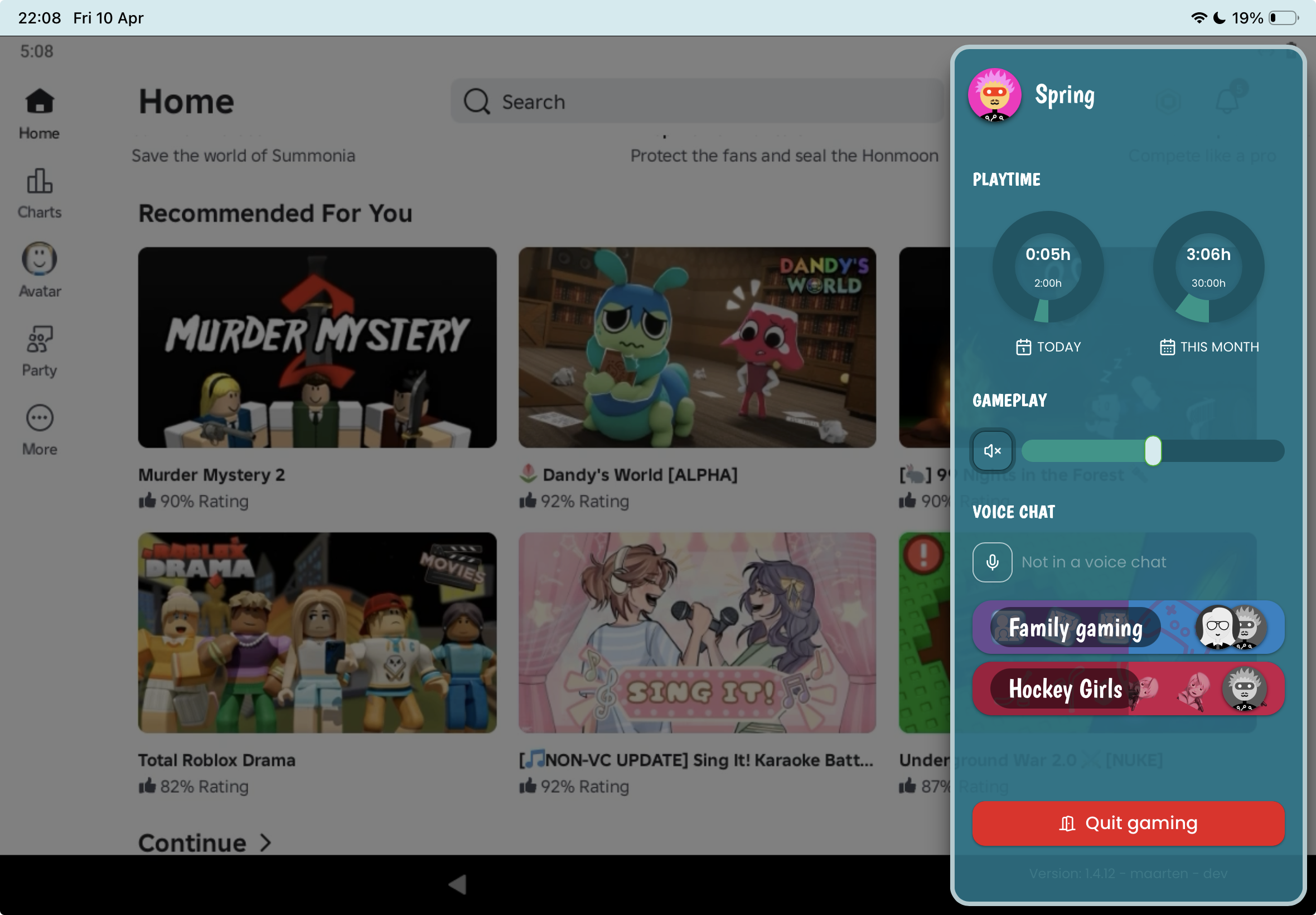
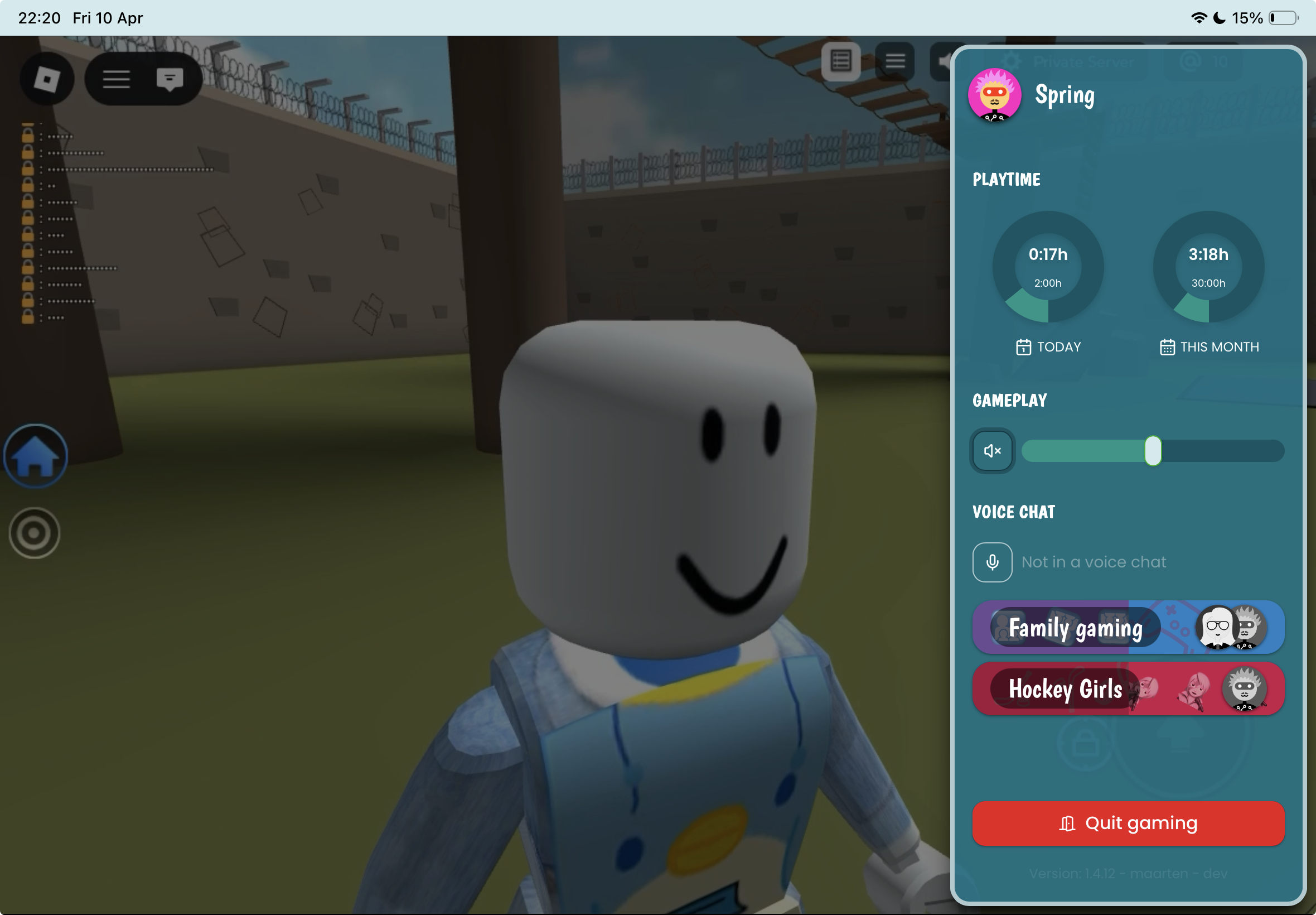
No more wondering who they're playing with or what they're seeing online. GuardianGamer gives you a safe, supervised space where kids play with real friends — and you get the highlights to enjoy together.

Build Better Gaming Habits without the fights

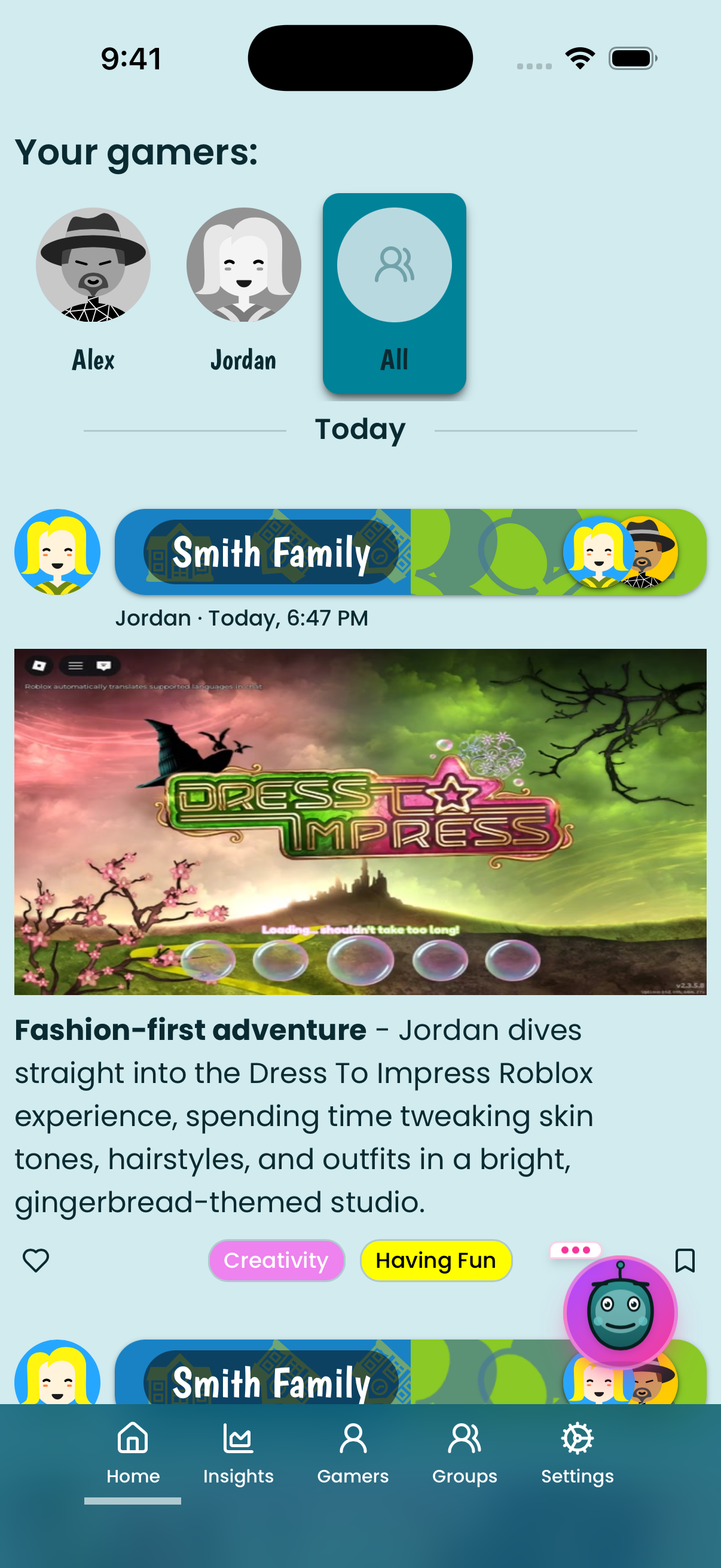
Staying connected to your child's gaming world has never been easier. With GuardianGamer, you get AI-powered highlight reels and gameplay summaries that turn 'what did you play today?' into real conversations. Watch their best moments, celebrate their wins, and finally understand why that victory royale was such a big deal.

4000+
Highlights delivered

Since we exist our platform has delivered Video Stories to parents and their kids helping them to engage and talk about video games.

Works with the games they love, on the devices they already use.

GuardianGamer works right alongside the games and devices your kids already love. No complicated setup, no new hardware — just connect and play. Everything syncs seamlessly so you can keep them safe without disrupting their fun.

Safe, Supervised Roblox with
AI-Powered Highlights

Habbits AI helps you effortlessly track and improve your habits. Whether you’re focusing on fitness, productivity, or wellness, our app offers powerful tools to help you achieve your goals.

a black check mark

Group Play with Trusted Friends

Kids play popular games together in private groups with real-life friends and classmates you invite

a black check mark

Private Voice Chat

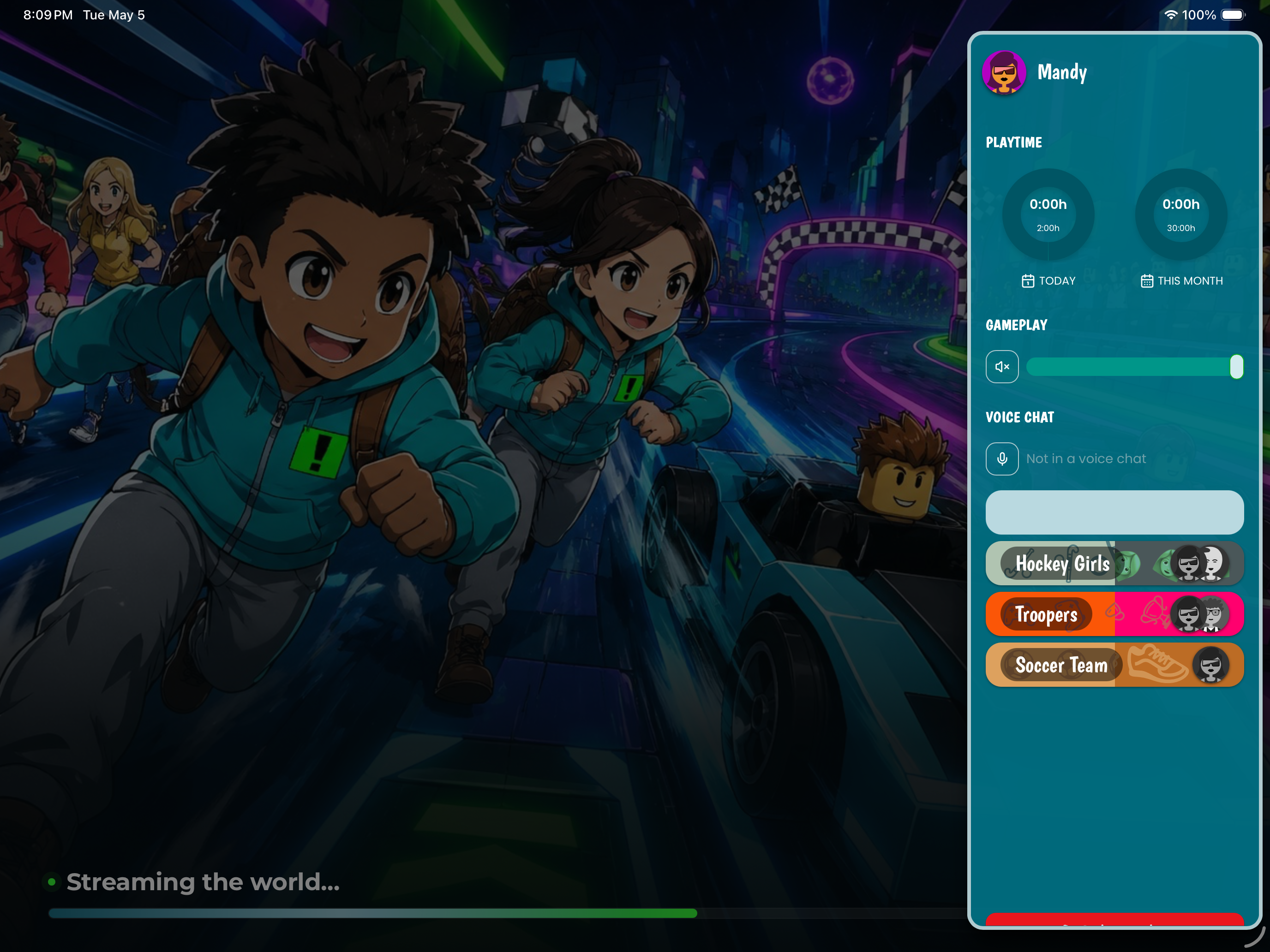
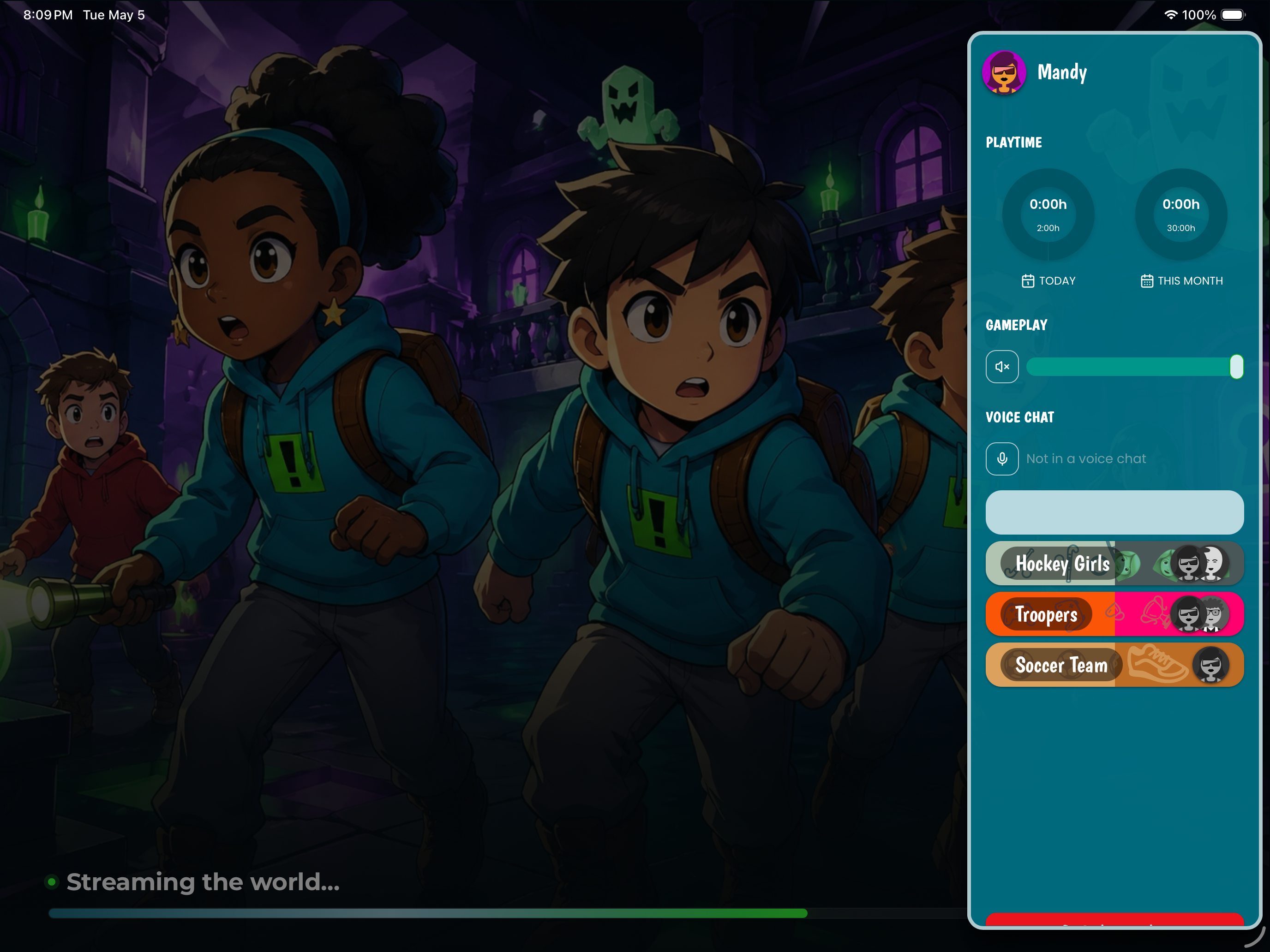
Friends embark on adventures together using our safe, monitored voice chat

a black check mark

AI Powered Highlight Video's

AI supervises and monitors sessions. Get highlight reels and gameplay summaries automatically

a black check mark

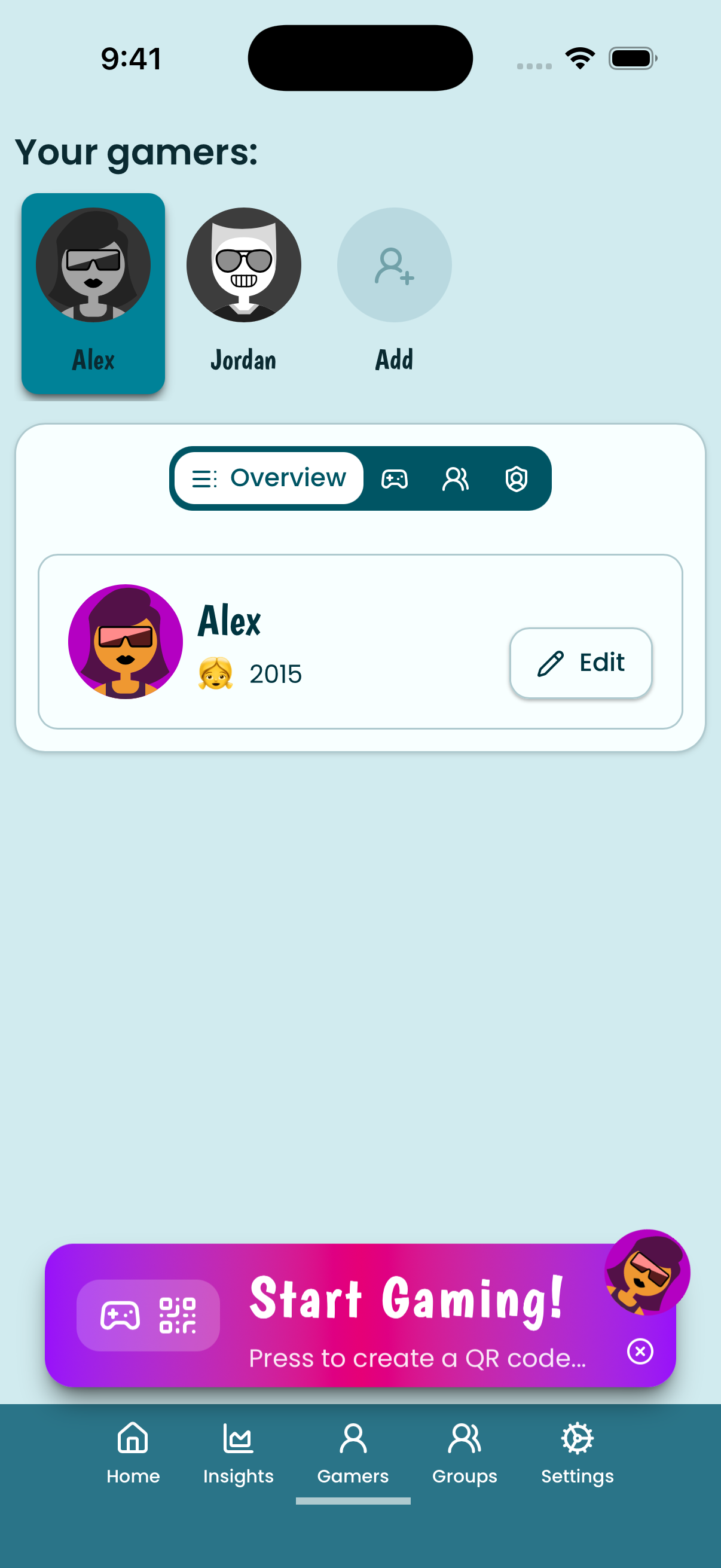
Guardian Parent App

Manage the digital playground from your phone. Easy signup, full control

a black check mark

Joinmy.gg

Safe environment for kids to launch Roblox and find their friends in their trusted groups.

a black check mark

Age Appropriate

Create (personalized after trial) content plans tailored to your preference and goals. Adjust them anytime to fit your changing needs.


Transform Your Parenting
Today

Try 30 Days For Free
GuardianGamer FAQ - Quick Navigation

How Can We Help You?

Find answers to your questions about GuardianGamer

🚀

Getting Started

Setup guides, device compatibility, and your first steps with GuardianGamer

3 articles
⚙️

App Setup Help

Troubleshooting downloads, QR codes, and getting apps on your devices

5 articles
🛡️

Safety & Protection

AI monitoring, stranger protection, privacy, and how we keep kids safe

3 articles
🎤

Voice Chat & Friends

How voice chat overlay works, GG Connected Friends, and safe communication

6 articles
👥

Social Gaming

Inviting parents, creating play groups, and building your parent network

4 articles
🎮

Game Account Setup

Using existing Roblox/Minecraft accounts, creating new ones, and managing devices

8 articles
⏱️

Parental Engagement

Time limits, schedules, reports, and monitoring your child's gaming

3 articles
💳

Pricing & Plans

Free trial details, premium features, and billing information

3 articles
🔧

Troubleshooting

Connection issues, performance problems, and getting help when you need it

2 articles

Didn't find what you need?

Help us improve! Share your feedback so we can make GuardianGamer better for families everywhere

Give us your Feedback

🚀 Getting Started

What is GuardianGamer and how does it make Roblox safer?

GuardianGamer is a safe gaming platform that creates a protected environment for kids to enjoy Roblox. We use advanced AI monitoring to ensure your child only sees age-appropriate content and interacts with approved friends.

Think of it as a digital playground with a fence - all the fun of Roblox, with built-in protection from inappropriate content, strangers, and unsafe interactions.

How do I get started? Is setup complicated?

Setup takes less than 5 minutes:

1. Visit guardiangamer.gg and create your parent account
2. Add your child's profile (first name only)
3. Download our app or use any web browser
4. Your child can start playing immediately!

Pro Tip: Start with our free plan to test everything out - no credit card required!
What devices work with GuardianGamer?

GuardianGamer works on any device with internet:

• iPads and tablets for portable gaming
• Laptops and computers at home
• Chromebooks

No downloads required - everything streams directly through your browser!

🚀  App Setup Help

How do I download the GuardianGamer App? I don't see it in the App Store.

Great question! The Gamer App is a web app that works directly in your browser—no App Store download needed!

Here's what happens when you scan the QR code on the Parent App:

Step 1: Your child's device opens a special webpage
Step 2: Tap "Add to Home Screen" (this makes it look and work like a regular app)
Step 3: Tap "Add" to confirm

That's it! The GuardianGamer icon will appear on their home screen just like any other app.

The Parent App also works as a web app on any device. iPhone users can alternatively download it from the App Store—just search for "GuardianGamer Parent".

Why web apps? Web apps work on any device (iPad, iPhone, Android, Chromebook) without separate downloads. It's faster and more flexible!
The setup instructions on my phone screen are too small to read. Help!

We hear you! Phone screens can make text tricky to read during setup. Here's the simple version:

On iPhone/iPad (Gamer App):
1. After scanning QR code, tap the Share button (square with arrow)
2. Scroll down and tap "Add to Home Screen"
3. Tap "Add" in the top right

On Android (Parent & Gamer Apps):
1. After scanning QR code, tap the menu (three dots)
2. Tap "Add to Home Screen"
3. Tap "Add"

Pro Tip: Do the initial setup on a larger screen (laptop or tablet) where instructions are easier to read, then scan the QR code with your child's device! You can install it on all their devices.

If you're still stuck, our support team can walk you through it: support@guardiangamer.com

How do I add GuardianGamer to another device (second iPad, phone, etc.)?

Easy! You can add as many devices as your child uses. Here's how to get a new connection code:

Step 1: Log into your Parent App on your own phone
Step 2: Go to the "Gamers" section or tab
Step 3: Click "Create Sign-In Code" next to your child's name
Step 4: Scan the new QR code with the additional device

Multiple Devices: Your child can switch between devices seamlessly - their settings and GG Connected Friends travel with them!
I signed up on my laptop. How do I get the Parent App on my phone?

Great question! You have two options:

Option 1: Web App (all devices)
1. Open your browser and go to guardiangamer.gg
2. Log in with your parent account
3. Add to home screen (iPhone: Share → "Add to Home Screen" / Android: Menu → "Add to Home Screen")

Option 2: App Store (iPhone only)
1. Open the App Store
2. Search for "GuardianGamer Parent"
3. Tap "Get" to download
4. Log in with your parent account

Now you can check highlights and monitor your child's gaming from anywhere!

When I play a highlight reel, it takes over my whole screen. How do I watch it in the app?

We hear you! Right now, highlight reels automatically play in full-screen mode on most devices to give you the best viewing experience. You turn your iPhone/Android on the side.

To exit full-screen:

• On computer: Press the ESC key or click the X in the corner
• On iPad/iPhone: Tap the screen and use the back/done button
• On Android: Use your device's back button

I signed up but haven't received any emails from GuardianGamer. Should I be worried?

Don't worry - you're all set! Let's make sure you're connected:

Check these things:

• Look in your spam/junk folder for emails from support@guardiangamer.com
• Make sure you can log into your Parent App at guardiangamer.gg
• Verify your child's Gamer App is connected and logging in

What to expect from GuardianGamer:

• Notifications when new highlights are ready
• Weekly summary reports of gaming activity
• Important safety or feature updates
• Tips for getting the most from GuardianGamer

Not Getting Emails? Add support@guardiangamer.com to your contacts and check your email notification settings in the Parent App.
Need Help Getting Started? Email us at support@guardiangamer.com or check this FAQ for answers. We're here to help you get everything set up perfectly!
I'm completely lost. Where do I start?

Take a deep breath - you've got this! Here's your simple checklist:

✅ Step 1: Add the Parent App to Your Phone (2-3 minutes)
- Go to guardiangamer.gg, log in, and add to home screen
- iPhone users can also download from the App Store
- Now you can monitor from anywhere!

✅ Step 2: Get Your Child's Device Connected (5 minutes)
• Scan the QR code with their iPad/phone
• Add the Gamer App to their home screen
• Let them log into their Roblox account

✅ Step 3: Start Building Your Friend Network (Optional)
• Go to "Gamers" section
• Invite other parents you know
• Approve friendships as they join

✅ Step 4: Let Them Play! (The fun part)
• Your child can start playing safely right away
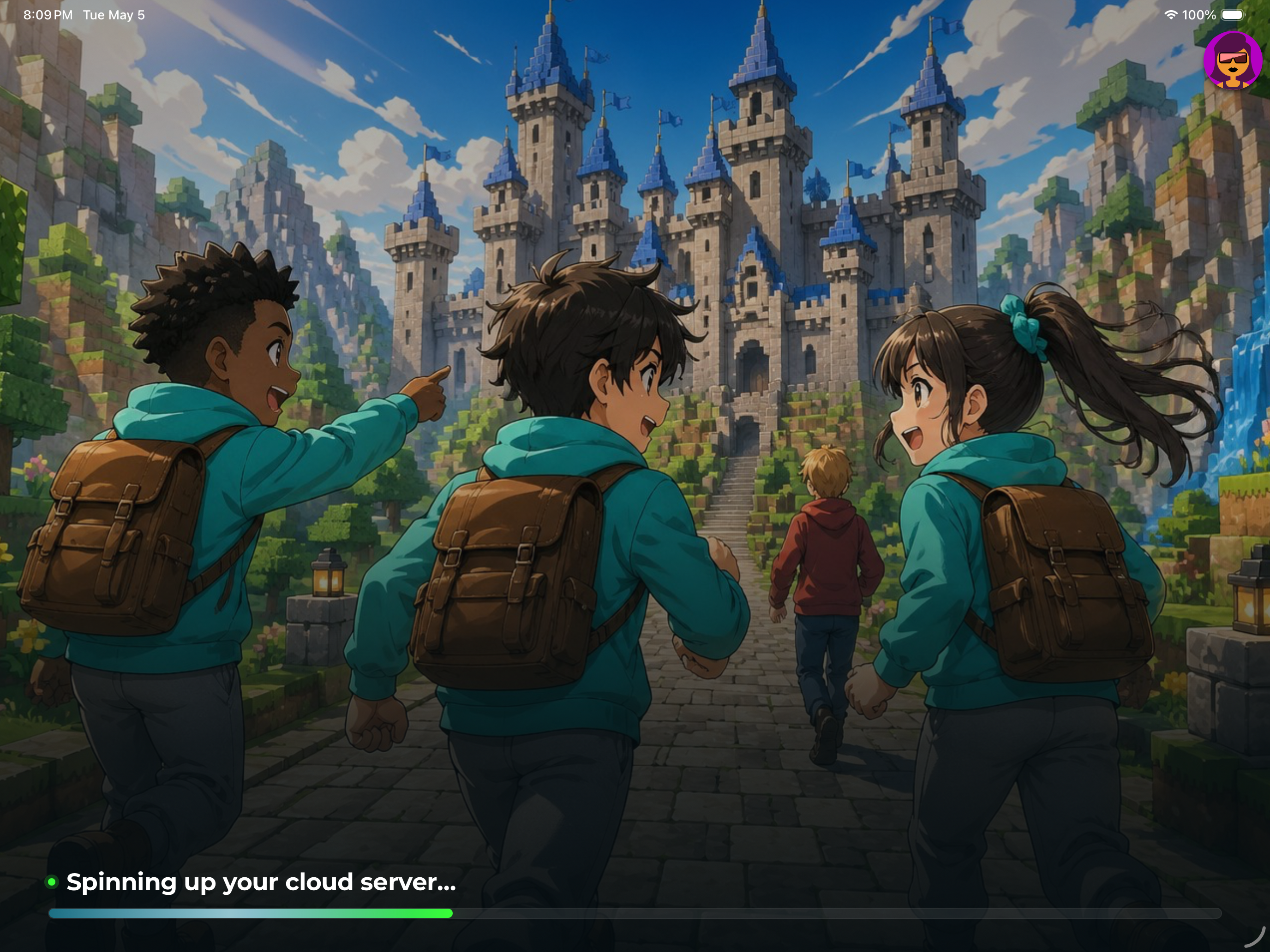
• Check back in 20-30 minutes for your first highlight reel
• See what they built and who they played with!

Still Stuck? We're here! Email support@guardiangamer.com or chat with us in the Parent App. We'll walk you through everything step by step. Most parents are up and running in under 10 minutes!

🛡️Safety & Protection

How does AI monitoring work? Is it watching my child constantly?

Our AI works like a smart safety assistant - it automatically detects inappropriate content, language, or behavior during play. It's not "watching" your child, but rather scanning for safety risks.

The AI creates helpful highlight reels of positive moments - like your child's creative builds or fun interactions with friends - available for you to watch after sessions (typically within 20 minutes).

Peace of Mind: Watch highlights when convenient to see your child's achievements and review any interactions that might need attention.
What protections are in place against strangers and inappropriate content?

Private Voice Chat Only:

• GuardianGamer replaces game voice chat with our secure overlay
• In-game voice chat is automatically disabled
• Kids only talk to pre-approved friends through our protected system

Complete Contact Control:

• Zero random player interactions allowed
• Only parent-approved friends can communicate
• Voice chat can be turned off entirely at any time

Safe Gaming Environment:

• Every game is age-appropriate and parent-vetted
• Chat filtering detects inappropriate language
• Highlight reels available after sessions to review any interactions

Your child plays in a private bubble with only trusted friends.

Is my child's data and privacy protected?

Absolutely. We're COPPA compliant and follow the strictest privacy standards for children.

• We never sell or share your child's information
• All communications are encrypted
• You control what data is stored
• Delete any information at any time
• Only first names are used - no personal details required

🎤 Voice Chat & GG Connected Friends

How does GuardianGamer's voice chat overlay work with my child's gaming accounts?

GuardianGamer creates a protective overlay on top of your child's existing Roblox, Minecraft, or other gaming accounts. This overlay replaces the game's built-in voice chat with our secure system.

Your child keeps their original gaming account and progress, but can only voice chat with GG Connected Friends - the trusted, real-life friends you've personally approved through our parent network.

What's the difference between my child's game friends and GG Connected Friends?

Game Friends: Anyone your child has friended within Roblox, Minecraft, etc. These could include online strangers.

GG Connected Friends: Only children whose parents you know and have connected with through GuardianGamer's parent network. These represent your child's real-life social groups.

Safe Social Gaming: Your child can still see their game friends in-world, but voice chat only works with GG Connected Friends you've approved.
What happens if my child encounters strangers while playing?

Your child can still play in the same game worlds as other players, but they're in a voice chat bubble with only their GG Connected Friends.

When encountering strangers:

• They can see other players and interact through game mechanics
• No voice communication is possible with non-GG friends
• Text chat is filtered and monitored
• Your child stays connected to their trusted friend group

How do I approve GG Connected Friends for my child?

Building your child's trusted network is simple:

Step 1: Connect with other parents you know in real life
Step 2: Both parents approve the friendship through the GG App
Step 3: Kids can now voice chat safely during gameplay
Step 4: Monitor interactions through your parent dashboard

Real-Life First: Focus on connecting with parents from school, sports teams, neighborhood friends, or family friends for the safest experience.
Does the GG Connected Friends system work across different games?

Yes! Your approved GG Connected Friends list travels with your child across all supported games.

Whether they're playing Roblox, Minecraft, or other supported titles, they can voice chat with the same trusted group of real-life friends. No need to manage separate friend lists for each game.

Can I see and manage my child's GG Connected Friends list?

Absolutely! Your parent dashboard gives you complete visibility and control:

• View all current GG Connected Friends
• See which parents you're connected with
• Remove friendships if needed
• Get notifications when new friend requests come in
• Monitor voice chat interactions and highlights

Parent Control: Only you can approve new GG Connected Friends - your child cannot add voice chat friends without your permission.

👥 Social Gaming & Friend Groups

How do I create safe play groups with my child's friends?

Creating friend groups is simple and secure:

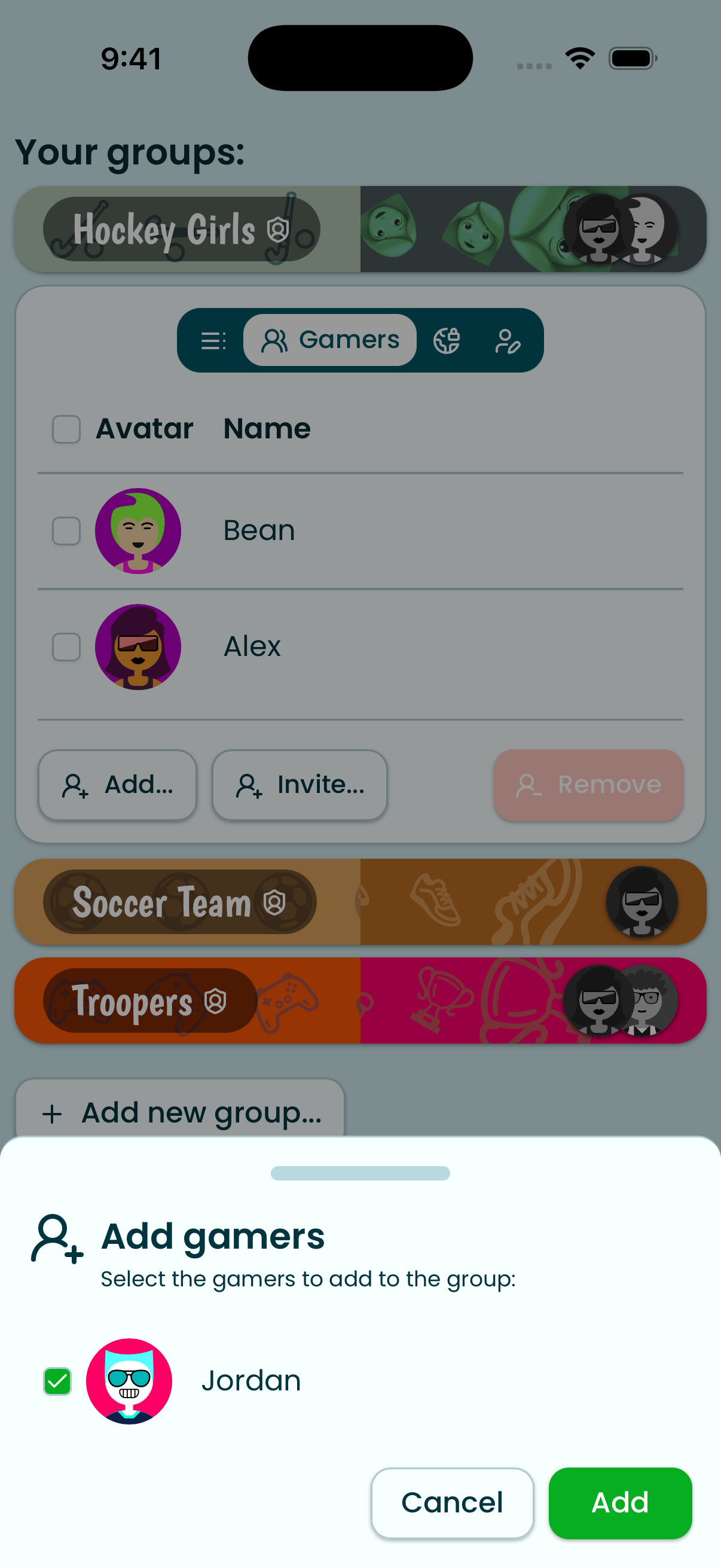
Step 1: Invite other parents via email or phone through your parent dashboard
Step 2: Both parents approve the friendship connection
Step 3: Kids can now play together safely in private sessions

Group Play: Create themed play groups like "Classroom Friends" or "Soccer Team" to organize different friend circles.

How do I invite other parents to join GuardianGamer?

Use our Parent Invite System:

• Send invitations directly from your dashboard
• Include the name of the friend you are inviting to play, also if you send it via sms txt include a personal message explaining the benefits. We suggest them to sign-up
• All parents get a 30-day free trial automatically
• Once they join, kids can connect immediately

Many parents love joining after seeing how safe and fun the experience is for everyone!

Can kids play together if parents have different subscription plans?

Yes! Cross-plan compatibility means kids can play together regardless of their parents' subscription levels.

• Free trial users can play with subscribers
• All safety features work the same for everyone
• Session time limits follow each child's individual family policy

Note: All core safety and play features work for everyone, regardless of their plan. After 30 days the trial is over, and you can subscribe.

What if I don't know the other parents personally?

We recommend connecting only with parents you know, but we have tools for expanding your network safely:

School/Class Groups: Teachers can create verified classroom groups
Activity Groups: Sports teams, clubs, etc. can create supervised groups
Parent Phone Verification: Optional identity verification for extra peace of mind

Trust your instincts - start with parents you know and expand gradually as you're comfortable.

🔧 Game Account Setup

Use your existing Roblox account or create one

Yes you keep your existing account on Roblox. You don't need to change anything in the games Roblox provides.  
Can my child use their existing Roblox account with GuardianGamer?

Yes! After connecting your devices through the QR code or PIN, your child can log into their existing Roblox account directly through the Gamer App. All their current friends, builds, and progress carry over seamlessly.

What if my child doesn't have a Roblox account yet?

No problem! They can create a new Roblox account right through GuardianGamer. We'll guide you through the setup process, and you'll have full control over privacy settings from day one.

Do I need to change any settings on my child's existing Roblox account?

GuardianGamer works with Roblox accounts as-is, but we recommend reviewing privacy settings together.

Can multiple kids use different Roblox accounts on the same GuardianGamer family plan?

Absolutely! Each child profile can link to their own unique Roblox account. No sharing required—everyone keeps their own builds, friends, and game progress.

What happens to my child's Roblox friends when we start using GuardianGamer?

Existing friendships stay intact, but here's the safety boost: You'll get notifications about who they're playing with, and our AI monitors all interactions. You can review and approve their friend list through your parent dashboard.

If we stop using GuardianGamer, what happens to the Roblox account?

Your child's Roblox account remains completely theirs—it's not tied to GuardianGamer. They can continue using it normally on any device. Think of us as a safety layer, not a replacement.

Can I see my child's Roblox chat history through GuardianGamer?

Yes! Our parent dashboard shows rather than detailed chat logs, indicators or flags of any concerning conversations. You'll get personalised highlights giving you peace of mind, like "Built with friends—all positive interactions" rather than overwhelming details.

Will GuardianGamer add more games?

Yes ! Minecraft is next.  

⚙️ Parental Engagement

How do I set screen time limits and schedules?

Flexible time management tools:

• Set daily time limits (e.g., 1 hour)
• Schedule allowed gaming hours (no gaming during homework time), you simply set the daily limit to 0
• Automatic bedtime shutoff around 9pm your local time
• Reward extra time for completed chores or homework

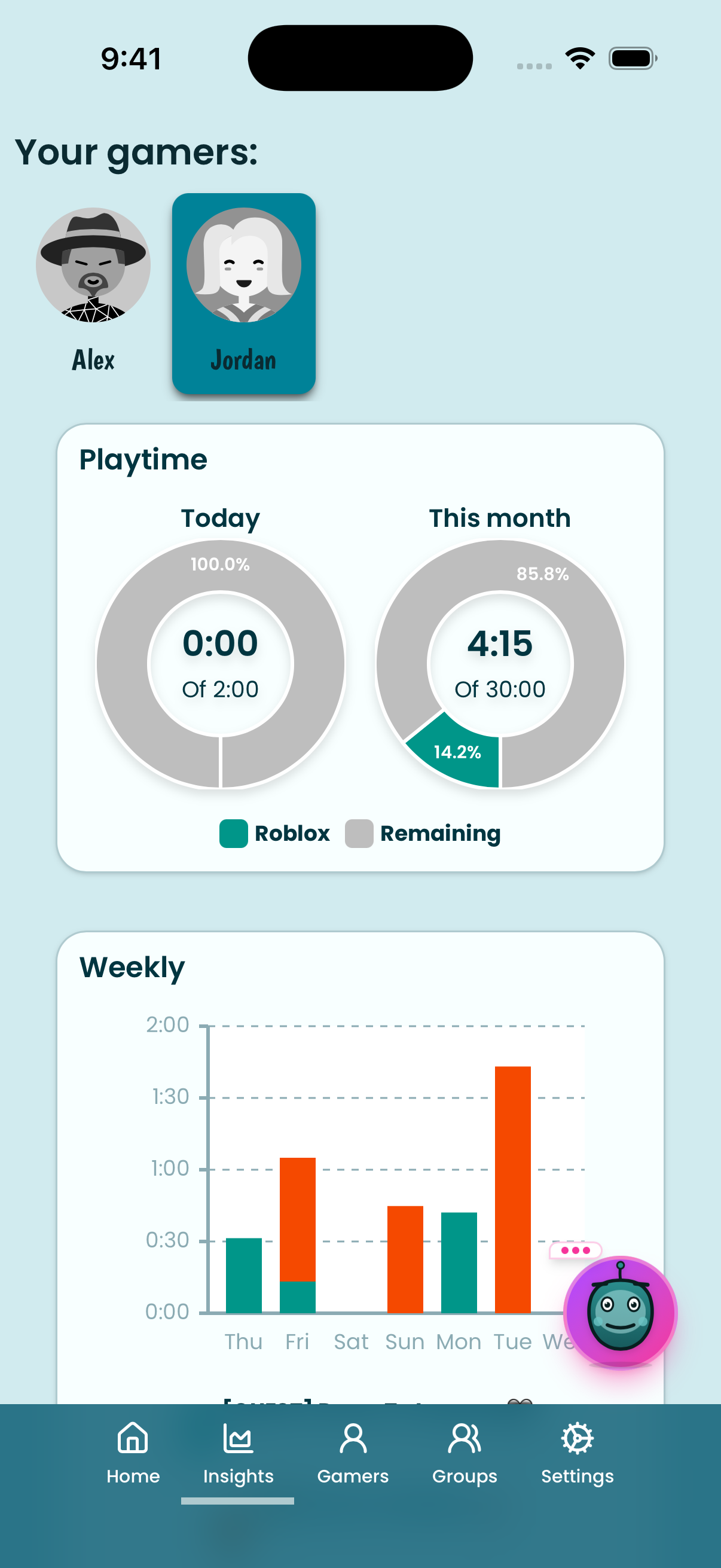
Smart Scheduling vs. Self Control Set different rules for school days vs. weekends, and the system automatically shows on the start screen of the child device how much time they still have left for the day and month. You can easily change all of this in your dashboard to select more or less hours per day. Have a conversation with your child where you make them aware about the time on the platform. Trust them to manage their gametime. If they are with friends they can always can stay on voice chat. Only game time is counted in the daily budget.

What kind of reports and insights do I receive?

Get meaningful insights, not overwhelming data:

Daily Recaps: Short summaries of play sessions with highlights
Short Insights: Patterns in play, social interactions, and creative achievements
Conversation Starters: Suggestions for talking about their gaming experiences
Safety Alerts: Only when something needs your attention

Can I watch my child play or join their games?

Family gaming features include:

• Join in on the game fun by watching the reels and have informed conversations like as you were a co-player in their games
• Watch live sessions (with their permission) is an feature under development
• Share highlight reels together
• Create family gaming conversation time

Many families find this transforms screen time from battles to bonding opportunities!

Dinner Time: The ideal time to check in is dinner time, quickly watch the highlight reels and start informed conversations. Make it lighthearted and fun.

💳 Pricing & Plans

What's included in the free trial?

30-Day Free Trial includes:

• Full access to all GuardianGamer features
• 30 hours gaming time a month
• Complete safety monitoring and AI highlights
• GG Connected Friends network
• Parent app and reports
• Priority customer support

Experience everything GuardianGamer offers with no restrictions for your first 30 days!

No Credit Card Required: Start your free trial immediately - only pay if you decide to continue after 30 days.
What happens after my 30-day free trial?

After your trial, continue with our Subscription Plan ($9.99/month) to keep all features:

• 30 hours of gaming time a month per parent account
• Advanced AI highlight reels
• Complete GG Connected Friends network
• Detailed weekly reports
• Multiple child profiles
• Simple time scheduling tools

Family Value: One account covers up to 5 children - much more affordable than managing safety on each device individually! No guessing whether you have configured all the game settings correct.
What if I decide not to continue after the trial?

No problem! Simply don't add a payment method and your trial will end automatically after 30 days.

• No automatic charges
• No cancellation fees
• Your child's gaming accounts remain untouched
• You can restart anytime if you change your mind

Note: Access to GuardianGamer's safety features will end after the trial period, but all original gaming accounts and progress remain yours.

🔧 Troubleshooting

What if the connection is slow or games are lagging?

Quick fixes for better performance:

• Close other apps or browser tabs
• Move closer to your WiFi router
• Use wired internet connection if possible
• Restart your router if problems persist

We recommend at least 10 Mbps internet speed for the best game experience.

Note: It takes at least 30 seconds to start a game. So recommended is children the first time they use it, will learn this.

How do I get help if something isn't working?

Multiple support options:

Email: support@guardiangamer.com
Parent Community: Connect with other parents

Fast Response: Most support requests are resolved within 2 hours during business hours.

Install Parent and Gamer web apps. Start your Digital Parenting Journey

Take control of your families digital wellbeing  with personalized GuardianGamer AI insights. Monitor and see your child gaming highlights, stay informed, and build a healthy foundation.

— Tap the Share button (□↑) at the bottom, then select 'Add to Home Screen'